
Download ScanDrop Lite – Free Document Scanning & Cloud Upload Tool
Overview
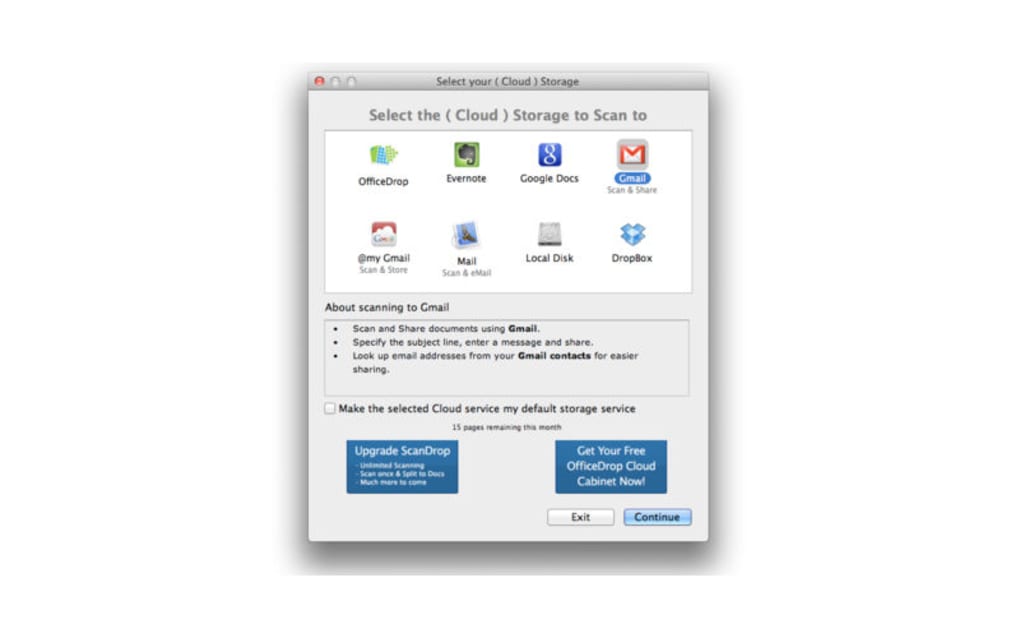
ScanDrop Lite is a lightweight, free scanning application that bridges the gap between traditional desktop scanners and modern cloud storage services. Designed for both home users and small‑business professionals, it enables you to turn paper documents into searchable PDFs or image files and instantly push them to the cloud without the need for manual file transfers. The interface is intentionally simple: select your scanner, choose a destination (Google Drive, Dropbox, OneDrive, Box, or local folders), and let ScanDrop Lite handle the rest.
Beyond basic scanning, the app offers on‑the‑fly editing tools—rotate, crop, reorder pages, and add simple tags—so you can perfect a document before it ever leaves your computer. Because the software is free, there are no hidden subscription fees, making it an attractive alternative to pricier scanning suites that lock essential cloud features behind a paywall. Whether you need to digitize receipts for expense tracking, archive contracts for legal compliance, or simply share lecture notes with classmates, ScanDrop Lite provides a secure, one‑click pathway from scanner to cloud.
The application also respects privacy; all data is transmitted over encrypted HTTPS connections, and files are never stored on third‑party servers unless you explicitly choose a cloud provider. In short, ScanDrop Lite delivers a streamlined, secure, and cost‑free solution for anyone who wants to modernize their paper workflow.
Key Features of ScanDrop Lite
- Direct cloud upload to Google Drive, Dropbox, OneDrive, Box, and more.
- Supports most TWAIN‑compatible desktop scanners on Windows and macOS.
- Basic editing tools: rotate, crop, reorder pages, and add simple tags.
- Batch scanning with automatic file naming based on date, document type, or custom rules.
- Secure HTTPS transfer ensures your documents stay private during upload.
- Option to save scans locally for offline access or backup.
- Lightweight installer under 15 MB, perfect for low‑spec machines.
- Automatic PDF creation with OCR (Optical Character Recognition) for searchable documents.
- Multi‑language interface supporting English, Spanish, French, German, and Japanese.
- Free forever – no hidden fees, premium tiers, or trial periods.
Each feature has been crafted with ease‑of‑use in mind. The direct‑to‑cloud capability eliminates the traditional “scan‑then‑copy” workflow, saving time and reducing the chance of lost files. The built‑in OCR engine automatically extracts text, making PDFs searchable and ready for indexing in your cloud storage.
Editing tools appear as intuitive icons right after a scan completes, so you can make adjustments without opening a separate program. Batch scanning lets you set up a “scan session” that captures dozens of pages, numbers them sequentially, and uploads them as a single PDF—all in one click. For users concerned about security, all communications with cloud providers are encrypted, and the software never stores credentials on your device.
Even though ScanDrop Lite is free, it doesn’t skimp on reliability; the developers release regular updates to maintain compatibility with the latest scanner drivers and cloud APIs.
Installation, Compatibility & Usage Guide
System Requirements (itemprop="operatingSystem")
ScanDrop Lite runs on Windows 10, Windows 11, and macOS 10.14 (Mojave) or later. The application supports any TWAIN‑compatible scanner, which includes the majority of home and office models from manufacturers such as Canon, Epson, HP, and Brother. While a dedicated scanner is required, the software does not need an internet connection for local saving; however, cloud upload functionality obviously requires an active internet connection.
Step‑by‑Step Installation
- Visit the official ScanDrop Lite website and click the “Download for Windows” or “Download for macOS” button.
- Once the installer (
scandrop‑lite‑setup.exeorscandrop‑lite‑mac.pkg) finishes downloading, double‑click to launch it. - Follow the on‑screen wizard: accept the license agreement, choose an installation folder (default is fine for most users), and click “Install”.
- When installation completes, launch ScanDrop Lite from the Start menu or Applications folder.
- The first launch will prompt you to grant access to your scanner and to sign in to your preferred cloud service(s). Authorize the connection using OAuth – you won’t need to type passwords into the app.
Using ScanDrop Lite Effectively
After the initial setup, scanning a document is as simple as selecting “New Scan” from the main dashboard. Choose your scanner from the dropdown, set the resolution (300 dpi is a good default for text), and decide whether you want a PDF or JPEG output. Click “Start Scan” and watch the progress bar.
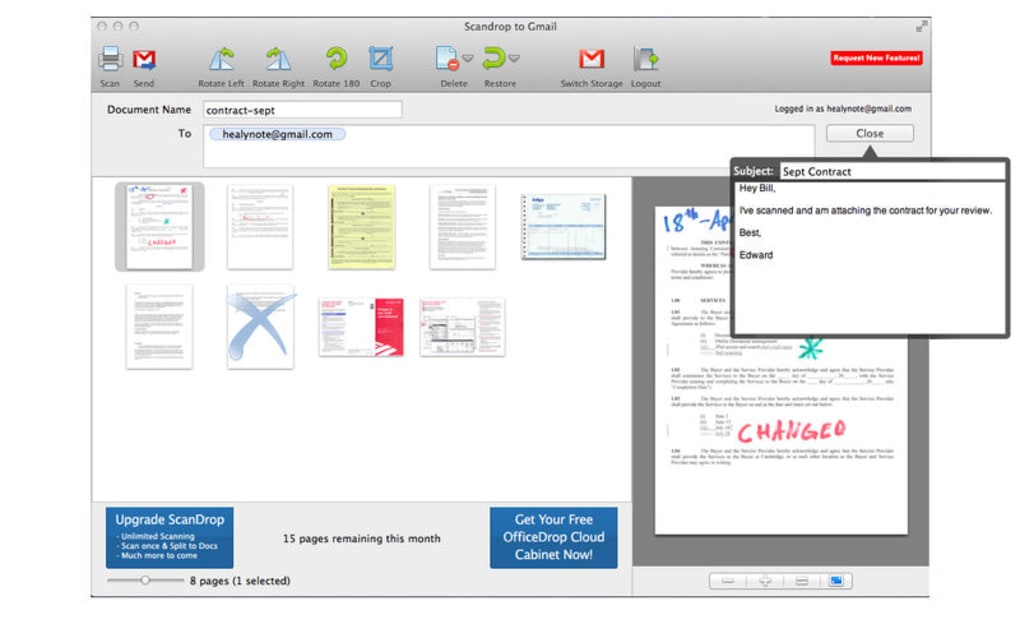
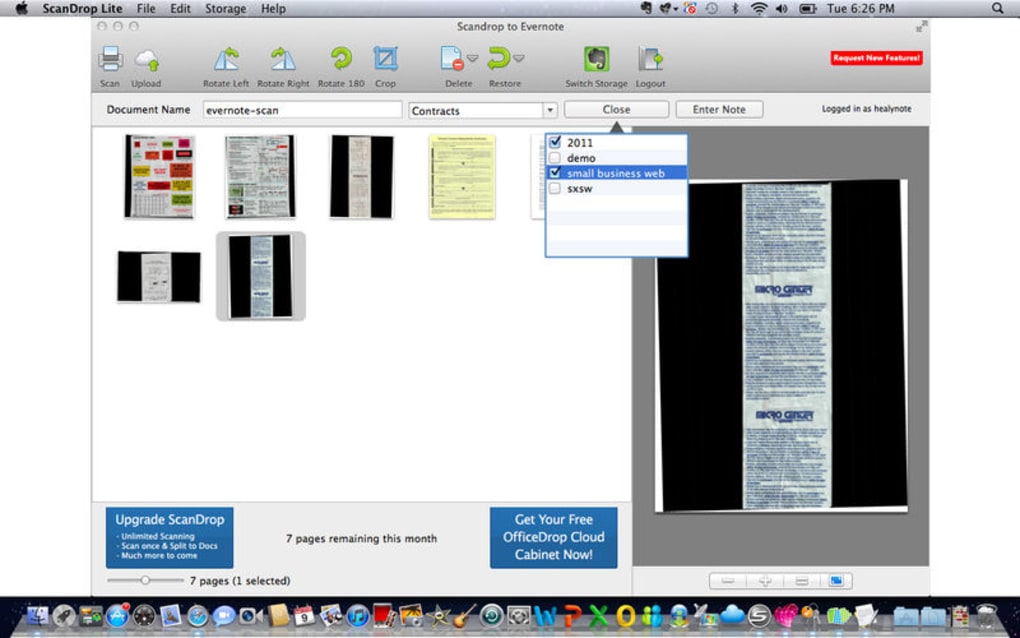
Once the scan finishes, a preview screen appears with the editing toolbar. Here you can rotate pages that came out sideways, crop white borders, and rearrange the page order by dragging thumbnails. If you need to tag the document for better organization in the cloud, click the “Add Tag” button and type a label such as “Invoice‑2024”.
Finally, select the cloud destination – the app will remember your last choice – and press “Upload”. A small notification confirms successful upload, and you can click the link to open the file directly in your cloud storage.
For batch operations, click “Batch Mode” before scanning. You can define a naming pattern (e.g., ProjectX_YYYYMMDD_###) and the app will automatically number each scanned page. When the batch is complete, all pages are merged into a single PDF and uploaded together. The software also offers a “Quick Save” option that bypasses the preview screen for high‑volume users who trust the scanner’s default settings.
Pros, Cons, Frequently Asked Questions & Final Verdict
Pros
- Completely free with no hidden fees.
- Seamless integration with major cloud storage providers.
- Lightweight and fast installation.
- Built‑in editing tools eliminate the need for third‑party software.
- Secure HTTPS upload protects sensitive documents.
- Supports batch scanning and automatic file naming.
Cons
- No advanced PDF features such as watermarks or digital signatures.
- Limited to TWAIN scanners; newer WIA or network scanners may need extra configuration.
- OCR accuracy can vary with low‑resolution scans.
- No built‑in backup or version‑control beyond the cloud provider.
Frequently Asked Questions
Is ScanDrop Lite really free or are there hidden costs?
ScanDrop Lite is 100 % free. There are no subscription plans, trial periods, or in‑app purchases. All cloud integrations are provided at no extra charge, though you will still be subject to the storage limits of the cloud service you choose.
Which cloud services are supported?
The application supports Google Drive, Dropbox, Microsoft OneDrive, Box, and any WebDAV‑compatible storage. You can add multiple accounts and select a different destination for each scan.
Can I use ScanDrop Lite on a laptop without a scanner?
Yes. The software also works with mobile scanners that expose a TWAIN interface over USB or Wi‑Fi. However, a physical scanning device is required to capture paper documents; the app itself does not provide a camera‑based scan option.
Is my data safe during the upload process?
All uploads are encrypted with TLS 1.2 or higher. ScanDrop Lite never stores your login credentials; it uses OAuth tokens provided by each cloud service, which you can revoke at any time from the provider’s security settings.
Does ScanDrop Lite offer OCR for searchable PDFs?
Yes, the free version includes a basic OCR engine that turns scanned images into searchable PDFs. For best results, scan at 300 dpi or higher and ensure the source document has clear, high‑contrast text.
Final Verdict & Call to Action
ScanDrop Lite fills a niche that many paid scanning suites overlook: providing a completely free, cloud‑first workflow without sacrificing essential editing tools. Its straightforward interface, solid security, and broad cloud compatibility make it an excellent choice for students, freelancers, and small businesses that need to digitize paperwork on a budget. While power users may miss advanced PDF manipulation features, the core functionality—scan, edit, tag, and upload—covers the majority of everyday needs.
If you’re looking for a reliable way to move from paper to the cloud without paying a subscription, give ScanDrop Lite a try today. Download the installer, connect your scanner, and start uploading documents in seconds. Your next PDF could be just a click away.
Overall Rating: 4.5 / 5
Pros: Free, cloud‑direct upload, simple UI, secure transmission.
Cons: Limited advanced PDF features, OCR depends on scan quality.







